
Overview

This guide walks you through adding voice and video calling capabilities to your Flutter application using the CometChat UI Kit.
Make sure you’ve completed the Getting Started guide before proceeding.

Step 1: Add Dependency

Add the following dependency to your pubspec.yaml file:
dependencies:
  cometchat_calls_uikit: ^5.0.12

Step 2: Update Android build.gradle

If your Flutter project’s minimum Android SDK version is below API level 24, update it in android/app/build.gradle:
defaultConfig {
    minSdkVersion 24
    targetSdkVersion flutter.targetSdkVersion
    versionCode flutterVersionCode.toInteger()
    versionName flutterVersionName
}

Step 3: Update iOS Podfile

In ios/Podfile, update the minimum iOS version to 12:
platform :ios, '12.0'

Step 4: Enable Calling in UIKitSettings

Modify the UIKitSettings to activate calling features using callingExtension:
UIKitSettings uiKitSettings = (UIKitSettingsBuilder()
  ..subscriptionType = CometChatSubscriptionType.allUsers
  ..autoEstablishSocketConnection = true
  ..region = "REGION" // Replace with your App Region
  ..appId = "APP_ID" // Replace with your App ID
  ..authKey = "AUTH_KEY" // Replace with your Auth Key
  ..extensions = CometChatUIKitChatExtensions.getDefaultExtensions()
  ..callingExtension = CometChatCallingExtension() // Enable calling
).build();

CometChatUIKit.init(uiKitSettings: uiKitSettings, onSuccess: (successMessage) {
  // Success
}, onError: (e) {
  // Error
});

Step 5: Set Up Incoming Call Navigation

To allow launching the Incoming Call screen from any widget, provide the CallNavigationContext.navigatorKey in your top-level widget:
CometChatUIKit.login(uid, onSuccess: (s) {
  Navigator.push(context, MaterialPageRoute(
    builder: (context) => CometChatUsersWithMessages(
      key: CallNavigationContext.navigatorKey
    )
  ));
}, onError: (e) {
  // Error
});

Verify Integration

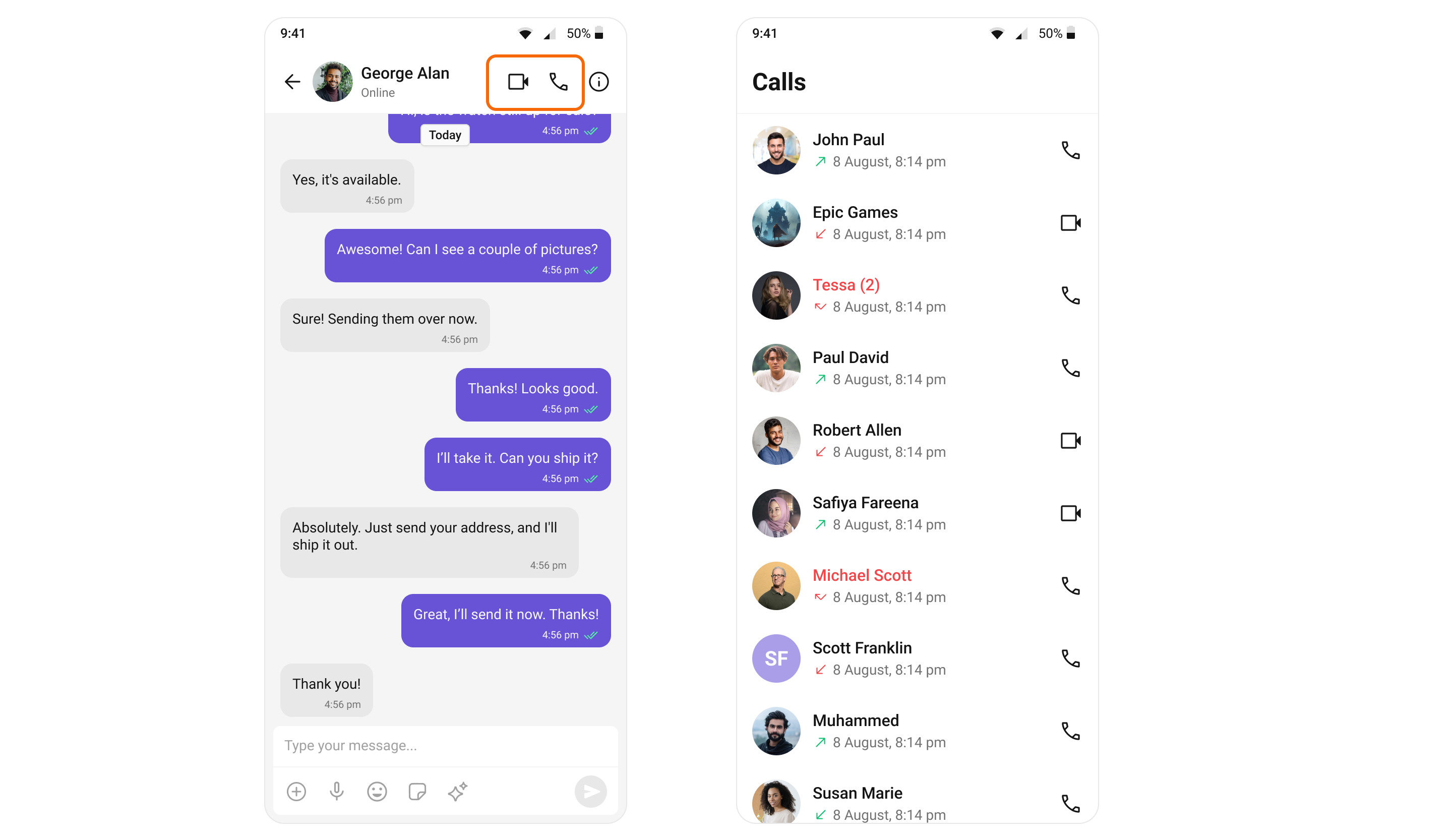
After adding the dependency, the Flutter UI Kit will automatically detect it and activate calling features. You will see CallButtons rendered in the MessageHeader widget.
Set Up Call Listeners

For every top-level widget where you want to receive call events, register the CallListener:
import 'package:cometchat/cometchat_sdk.dart';

class _YourClassNameState extends State<YourClassName> with CallListener {
  @override
  void initState() {
    super.initState();
    CometChat.addCallListener(listenerId, this);
  }

  @override
  void dispose() {
    super.dispose();
    CometChat.removeCallListener(listenerId);
  }

  @override
  void onIncomingCallReceived(Call call) {
    super.onIncomingCallReceived(call);
    debugPrint("onIncomingCallReceived");
  }

  @override
  void onOutgoingCallAccepted(Call call) {
    super.onOutgoingCallAccepted(call);
    debugPrint("onOutgoingCallAccepted");
  }

  @override
  void onOutgoingCallRejected(Call call) {
    super.onOutgoingCallRejected(call);
    debugPrint("onOutgoingCallRejected");
  }

  @override
  void onIncomingCallCancelled(Call call) {
    super.onIncomingCallCancelled(call);
    debugPrint("onIncomingCallCancelled");
  }

  @override
  void onCallEndedMessageReceived(Call call) {
    super.onCallEndedMessageReceived(call);
    debugPrint("onCallEndedMessageReceived");
  }

  @override
  Widget build(BuildContext context) {
    // Your widget build
  }
}